Claude Code Skill:自动生成文章内容与配图
45 / 0 / 创建于 8个月前
 Sown 的个人博客
在上一篇文章中,我们已经介绍了 Claude Code 的安装与使用,以及它的一些核心功能。本篇将带你体验如何使用 Claude Code Skill 自动生成完整文章,并一并生成配图。
在这里,我们会把「文章生成」和「配图生成」拆分为两个 Skill 来分别讲解。
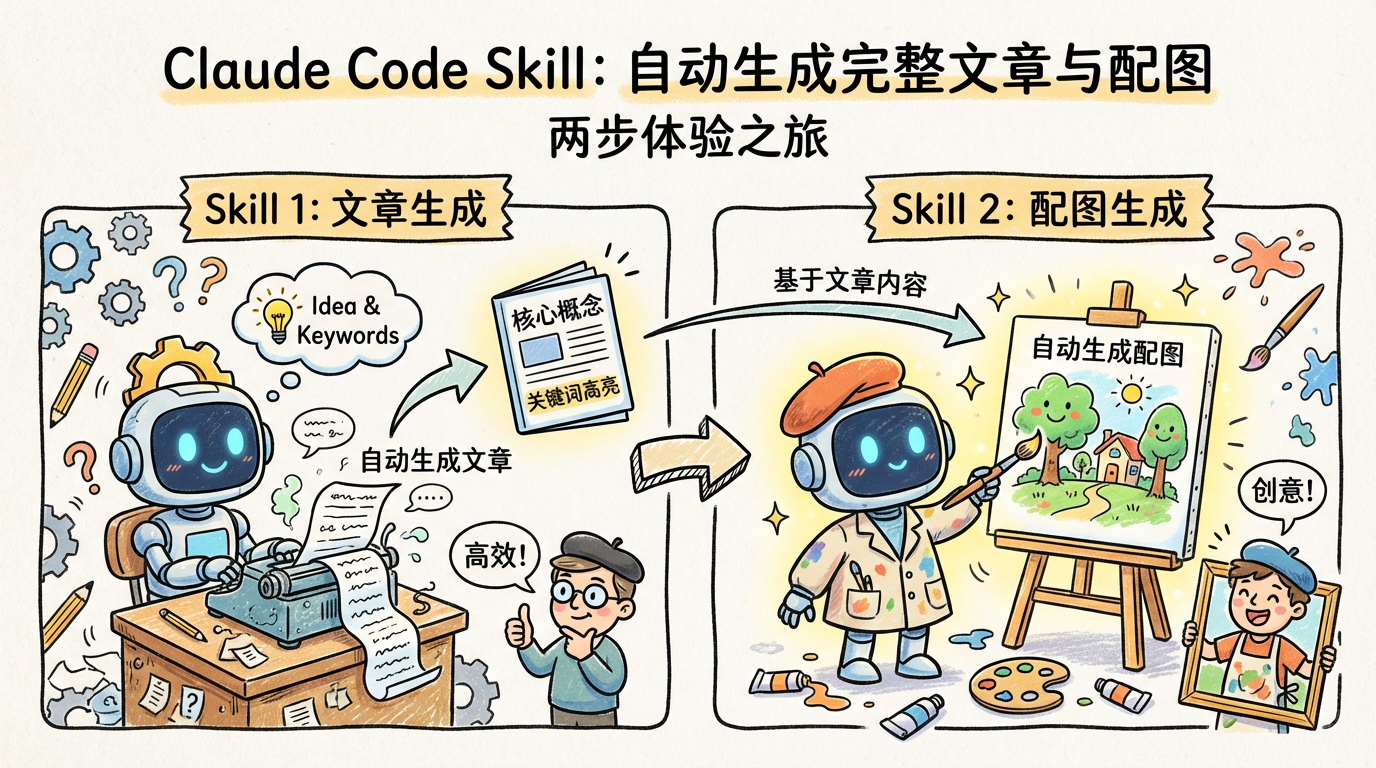
1. Article Generator Skill
在 .claude/skills 目录下新建 article-generator 目录:
article-generator/
└── SKILL.md          # 核心逻辑
当前举例的是网站引流类博客文章, 它需要符合Google SEO 的最佳实践,包括了 友好的 H2 H3 结构,合理的关键词密度,合适位置的配图等等。
1.1 输入参数
为了得到更可控、效果更稳定的输出,我们需要为 Skill 传入一些参数:
| 参数 | 是否必填 | 说明 |
|---|---|---|
| 文章标题 | 是 | 文章标题,用于 H1 标题以及文件名 slug 的生成 |
| 主关键词 | 是 | 文章的核心关键词,会体现在标题中并贯穿全文 |
| 长尾关键词 | 否 | 2–5 个相关长尾关键词,用于自然融入内容 |
| 参考资料 | 否 | 参考内容、数据来源、关键要点等 |
| 目标字数 | 否 | 默认 1500–2500 字 |
| 文章类型 | 否 | 教程 / 对比 / 列表 / 指南 / 评测(如未指定,将根据关键词自动判断) |
同时,我们还需要提前告诉 AI:文章的哪些位置需要配图。这里先让模型在相应位置插入占位图片,后续再由配图 Skill 进行替换。
1.2 SKILL.md
Skill 的需求已经比较清晰了。接下来通过与 AI 的几轮迭代讨论,我们得到了如下 SKILL.md 内容:
---
name: article-generator
description: Generate high-quality SEO-optimized articles from reference content, with image placeholders
---
# Article Generator
## Overview
Generate high-quality articles following Google SEO best practices by providing keywords, long-tail keywords, and reference content.
## Input Parameters
When executing this skill, the following information is required. If not provided, ask the user:
| Parameter | Required | Description |
|-----------|----------|-------------|
| Article Title | Yes | The article title, used for H1 and filename slug generation |
| Primary Keyword | Yes | Core keyword for the article, featured in title and throughout content |
| Long-tail Keywords | No | 2-5 related long-tail keywords to naturally integrate |
| Reference Material | No | Reference content, data sources, key points, etc. |
| Target Word Count | No | Default 1500-2500 words |
| Article Type | No | Tutorial/Comparison/List/Guide/Review (auto-detected from keyword if not specified) |
## SEO Structure Requirements
### Heading Hierarchy (H Tags)
```
H1: Only 1, contains primary keyword, 50-60 characters, click-worthy
├── H2: 3-6 sections, each representing a main topic with keyword variations
│ ├── H3: As needed, subdividing H2 content
│ └── H3: ...
├── H2: ...
└── H2: ...
```
**H1 Title Requirements:**
- Use the user-provided Article Title as H1
- Should include primary keyword, preferably near the beginning
- Recommended length 50-60 characters
**H2/H3 Title Requirements:**
- Each H2 should answer a specific user question
- Include natural variations of primary or long-tail keywords
- Avoid meaningless numbering like "Chapter 1"
### Frontmatter Format
```yaml
---
title: "Article Title"
description: "150-160 character description with primary keyword and call-to-action"
date: "YYYY-MM-DD"
keywords: ["primary keyword", "long-tail 1", "long-tail 2"]
---
```
## Keyword Placement Strategy
### Density Control
- Primary keyword density: 1-2% (1-2 occurrences per 100 words)
- Avoid consecutive appearances, maintain at least 50-word intervals
### Required Placement Locations
1. **H1 Title** - Near the beginning
2. **First 100 words** - Natural integration
3. **At least 1 H2 heading**
4. **Middle of article** - 1-2 times
5. **Conclusion paragraph** - Natural wrap-up
### Avoiding Keyword Stuffing
- Don't repeat keywords consecutively
- Don't force keywords unrelated to context
- Use synonyms and related terms
- Use pronouns to reference mentioned keywords
- Distribute long-tail variations throughout
## Content Quality Requirements
### E-E-A-T Principles
- **Experience**: Demonstrate real-world usage experience with practical details
- **Expertise**: Use accurate terminology, provide in-depth analysis
- **Authoritativeness**: Cite credible sources, provide specific examples
- **Trustworthiness**: Present objective content, acknowledge limitations
### Audience Adaptation (Mixed Approach)
- Start with simple language, quickly explain value
- Gradually introduce advanced techniques
- Use labels like "Beginner Tip" and "Advanced Tip" to differentiate content levels
- Explain technical terms on first use
### Paragraph Guidelines
- 2-4 sentences per paragraph, no more than 150 words
- Logical transitions between paragraphs
- Use **bold** for important points
- Use lists appropriately to enhance readability
## Image Requirements
### Image Density
- Insert one image every 300-500 words
- Long articles (>2000 words) should have at least 4 images
### Image Placeholder Format
```markdown

```
Example:
```markdown

```
### Recommended Image Types
- Infographics: Summaries, comparisons, step-by-step processes
- Screenshots: Tutorials, feature demonstrations
- Diagrams: Concept explanations, architecture overviews
## Link Strategy
### Internal Link Placeholders
Reserve internal link positions at relevant content:
```markdown
[Related: Anchor text with keyword](internal-link-placeholder)
```
### External Link Citations
Cite authoritative external sources:
```markdown
According to [Source Name](external-url)...
```
## CTA (Call-to-Action)
Articles must end with a clear CTA:
- Free tools: Encourage trial
- Tutorials: Encourage practice and sharing
- Products: Guide to learn more or purchase
Example:
```markdown
## Get Started
Now that you understand the key points of [topic], [Product Name] offers [core value]. [Action verb] now to start experiencing it.
```
## Output Format
### Output Directory
Save all generated articles to the `articles` directory:
```
articles/
└── {article-title-slug}.md
```
### Filename Convention
Convert user-provided Article Title to SEO-friendly slug:
- All lowercase
- Replace spaces with `-`
- Remove special characters
- Keep numbers
- Example: Title "Best AI Tools for Beginners" → `best-ai-tools-for-beginners.md`
### File Structure
```
---
title: "..."
description: "..."
date: "..."
keywords: [...]
---
# H1 Title
Opening paragraph: Directly address user search intent, include primary keyword within first 100 words
## H2 Section 1
Content...

## H2 Section 2
Content...
...
## Conclusion / Get Started
Closing paragraph + CTA
```
## Quality Checklist
Self-check after generation:
- [ ] H1 contains primary keyword with appropriate length
- [ ] Primary keyword appears within first 100 words
- [ ] Keyword density is 1-2%
- [ ] At least 3 H2 sections
- [ ] Sufficient image placeholders
- [ ] Clear CTA at the end
- [ ] Filename follows SEO conventions
- [ ] Frontmatter is complete
- [ ] Article saved to `articles` directory
最终,Article Generator Skill 在 .claude/skills 目录中的结构如下:
article-generator/
└── SKILL.md         # 核心逻辑
Skill 编写完成之后,我们就可以开始实际执行了。
1.3 执行
只要 Skill 的文件放在正确位置,并且按照规范格式编写好,我们在 Claude 的交互终端中输入 “/” ,就可以看到刚刚创建的 Skill。当前版本已经支持热重载,修改 Skill 之后无需重启 Claude,即可立即生效。

为了方便演示,这里我们只填写 title、Primary Keyword 和 Long-tail Keywords,然后执行:
/article-generator
Article Title: AI Image Generator: The Best AI Tools in 2026
Primary Keyword: best ai image generator in 2026
Long-tail Keywords: best free ai image generator in 2026 | best ai image generator for commercial use | best ai image generator online | best text to image ai generator 2026 | top ai image generators 2026
执行过程中 Claude 可能会并行发起多个 Web 搜索,请求权限时同意即可: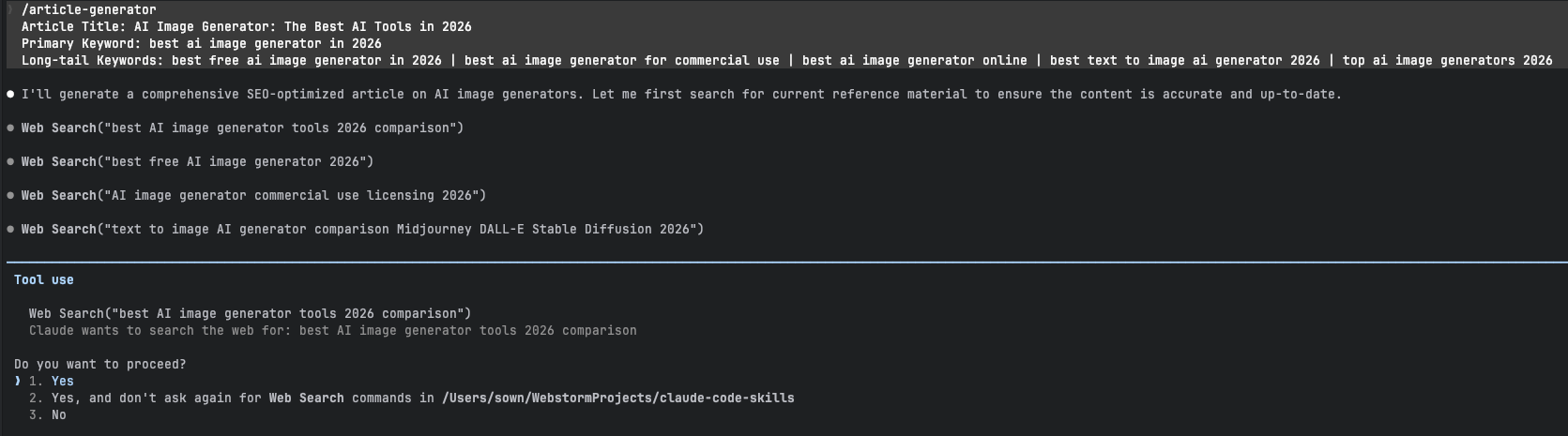
稍等片刻,文章生成完成,在提示是否写入文件时选择 Yes: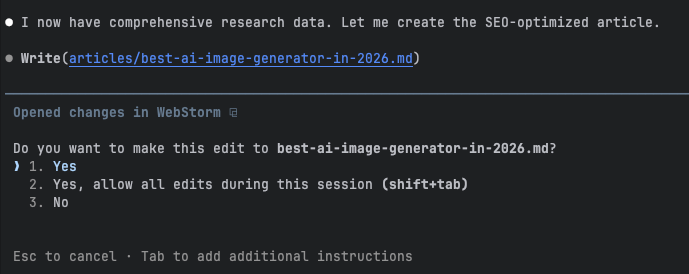
此时当前目录中会出现:
articles/
└── best-ai-image-generator-in-2026.md
打开这个文件,由于正文内容较长,这里只截取其中一小段:
# AI Image Generator: The Best AI Tools in 2026
Finding the best AI image generator in 2026 can feel overwhelming with dozens of powerful tools competing for your attention. Whether you need stunning visuals for marketing campaigns, creative artwork for personal projects, or commercially-safe images for your business, the right tool exists—you just need to know where to look.
The AI image generation landscape has matured significantly. The era of "prompt and pray" is over. Today's tools deliver consistent, professional-quality results that rival human artists. In this comprehensive guide, we compare the top AI image generators 2026 has to offer, covering free options, commercial-use platforms, and specialized tools for every creative need.
可以看到,除了正文内容已经自动生成之外,图片的占位也一并插入好了。
接下来,我们就来开发文章配图的生成功能。
2. Image Generator Skill
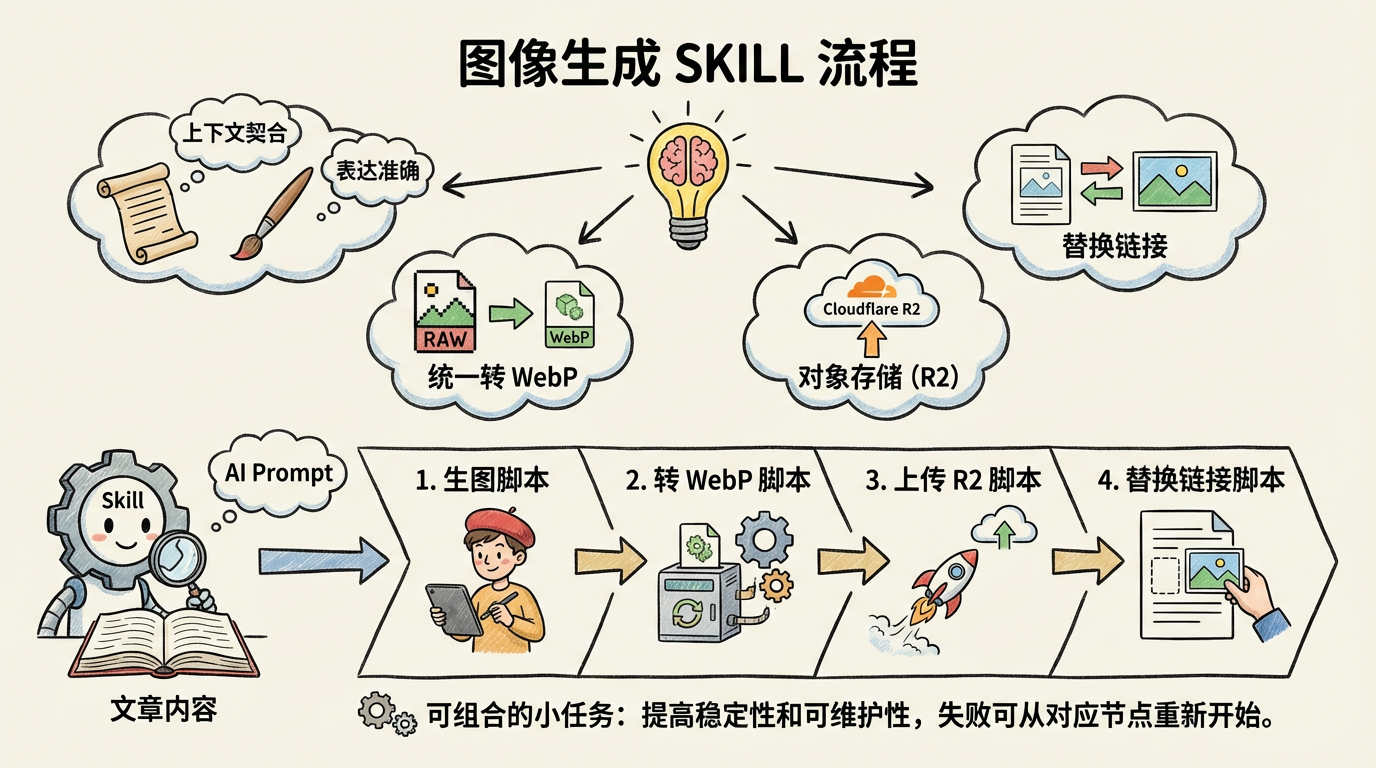
相比生成文章,自动生成配图要复杂得多,主要要考虑下面几个因素:
- 图片内容要与文章上下文高度契合,表达准确
- 原始图片通常体积较大,需要统一转成 WebP 格式
- 图片需要上传到对象存储(例如 Cloudflare R2)
- 最终要把文章中的占位图链接替换为真实图片地址
好在 Skill 本身是支持执行脚本命令的,我们可以把这些操作拆分成脚本交给 AI 去执行。首先分别开发:生图脚本、转 WebP 脚本、上传 R2 脚本、替换链接脚本。
理论上也可以把所有步骤写在一个脚本里,但从稳定性和可维护性考虑,更推荐拆成多个可组合的小任务。这样一旦中途某个步骤失败,可以从对应节点重新开始,而不必每次都从头执行整个流程。
整体流程可以总结为:
- Skill 根据文章路径参数获取文章文件内容
- Skill 读取文章中的图片占位符,并结合上下文为每一处生成图片的 AI Prompt
- 调用生图脚本
- 调用转 WebP 脚本
- 调用上传 R2 脚本
- 调用替换链接脚本
2.1 SKILL.md
接下来开始创建 SKILL.md:
---
name: image-generator
description: Analyze article image placeholders and generate AI image prompts based on context
---
# Image Generator
## Overview
This skill analyzes articles to find image placeholders, understands the surrounding context, and generates high-quality AI image prompts for each placeholder. Prompts are saved as individual markdown files organized by article.
## Input Parameters
| Parameter | Required | Description |
|-----------|----------|-------------|
| Article File | Yes | Path to the article markdown file (e.g., `articles/photo-restoration-the-best-ai-tools-in-2026.md`) |
## Workflow
### Step 1: Read Article and Extract Placeholders
Read the article file and find all image placeholders matching this pattern:
```markdown

```
For each placeholder, extract:
- **Alt text**: The image description between `[]`
- **Filename**: The image filename between `()`
- **Context**: The surrounding content (H2 section, paragraphs before/after)
### Step 2: Analyze Context for Each Placeholder
For each image placeholder, analyze:
1. **Section topic**: What H2/H3 heading does this image belong to?
2. **Content purpose**: Is it explaining a concept, showing a comparison, demonstrating a tool?
3. **Adjacent text**: What specific points are being made around the image?
4. **Alt text intent**: What does the alt text suggest the image should show?
### Step 3: Generate AI Image Prompt
Create a detailed prompt that will produce an image matching the article context.
**Prompt structure:**
```markdown
## Image Brief
- **Filename**: {original-filename}
- **Alt Text**: {original-alt-text}
- **Section**: {h2-section-title}
- **Purpose**: {image-purpose}
## Context
{relevant-paragraph-before}
{relevant-paragraph-after}
## AI Image Prompt
{detailed-prompt-for-image-generation}
## Style Notes
- Style: {photorealistic/illustration/diagram/screenshot-mockup}
- Mood: {professional/friendly/technical/artistic}
- Colors: {color-palette-suggestions}
- Composition: {layout-suggestions}
```
### Step 4: Save Prompt Files
Save each prompt to the `prompts` directory with this structure:
```
prompts/
└── {article-slug}/
├── {image-1-slug}.md
├── {image-2-slug}.md
└── ...
```
**Filename convention:**
- Use the image filename without extension as the slug
- Example: `ai-photo-restoration-before-after.png` → `ai-photo-restoration-before-after.md`
## Prompt Generation Guidelines
### For Comparison Images (before/after)
```
Create a split-screen comparison showing [subject] transformation.
Left side: [before state description]
Right side: [after state description]
Include a clear dividing line or label. Professional presentation style.
```
### For Interface/Screenshot Mockups
```
Create a clean UI mockup of [application name] showing [specific feature].
Include: [key UI elements]
Style: Modern, minimal interface with [color scheme]
Do not include real brand logos or copyrighted elements.
```
### For Concept Diagrams
```
Create an informative diagram illustrating [concept].
Show: [key elements and their relationships]
Style: Clean, professional infographic style
Use [color palette] with clear labels and arrows.
```
### For Workflow/Process Images
```
Create a step-by-step workflow diagram showing [process name].
Steps: 1. [step] 2. [step] 3. [step]...
Style: Horizontal/vertical flow with numbered steps
Icons for each step, connected by arrows.
```
### For Tool/Feature Demonstrations
```
Create an illustration showing [tool/feature] in action.
Focus on: [key functionality being demonstrated]
Include: [contextual elements that show usage]
Style: [appropriate style for the tool type]
```
## Quality Requirements
### Prompt Quality Checklist
- [ ] Prompt is specific and detailed (not vague)
- [ ] Matches the article's tone and subject matter
- [ ] Includes style direction (realistic, illustrated, etc.)
- [ ] Specifies composition and layout
- [ ] Avoids trademarked terms or specific brand requests
- [ ] Provides enough detail for consistent generation
### Context Accuracy
- [ ] Prompt reflects the actual section content
- [ ] Image purpose aligns with surrounding text
- [ ] Alt text intent is respected and expanded upon
## Output Format
Each saved prompt file should follow this template:
```markdown
# {Image Filename}
## Brief
- **For Article**: {article-title}
- **Section**: {h2-section}
- **Alt Text**: {original-alt}
## Context Summary
{2-3 sentence summary of what this section discusses}
## Prompt
{The actual AI image generation prompt - detailed, specific, actionable}
## Technical Specs
- Aspect Ratio: 16:9 / 4:3 / 1:1
- Style: Photorealistic / Illustration / Diagram / UI Mockup
- Primary Colors: {suggested colors}
```
## Example
**Input placeholder from article:**
```markdown

```
**Generated prompt file** (`prompts/photo-restoration-the-best-ai-tools-in-2026/ai-photo-restoration-before-after.md`):
```markdown
# ai-photo-restoration-before-after.png
## Brief
- **For Article**: Photo Restoration: The Best AI Tools in 2026
- **Section**: Introduction
- **Alt Text**: Comparison of damaged old photo and AI-restored result
## Context Summary
The article introduces AI photo restoration technology, explaining how it can recover damaged photographs. This image serves as a visual hook demonstrating the dramatic transformation possible with modern AI tools.
## Prompt
Create a side-by-side comparison image showing photo restoration results.
Left side: A vintage photograph from the 1960s showing visible damage - faded sepia tones, scratches across the surface, a small tear in one corner, and slight water staining. The photo shows a family portrait with slightly blurred faces.
Right side: The same photograph fully restored - vibrant colors recovered, all scratches and tears digitally removed, faces sharpened and clear, water damage eliminated. The restoration looks natural, not over-processed.
Include a subtle dividing line between the two halves. Add small "Before" and "After" labels in a clean, modern font at the bottom of each side. Professional presentation suitable for a technology article.
## Technical Specs
- Aspect Ratio: 16:9
- Style: Photorealistic
- Primary Colors: Warm vintage tones (left), natural restored colors (right)
```
---
## Post-Prompt Workflow
After generating prompts (Steps 1-4), execute the following steps **sequentially** to complete the image pipeline:
```
prompts/{article-slug}/*.md → images/{article-slug}/*.png → *.webp → R2 → article updated
Step 5 Step 6 Step 7 Step 8
```
### Step 5: Generate Images
Use the AI image generation API to create images from the prompts.
```bash
npm run generate-images <article-slug>
```
**What it does:**
- Reads all prompt files from `prompts/{article-slug}/`
- Calls the image generation API for each prompt
- Saves generated images to `images/{article-slug}/` as PNG files
**Output:** `images/{article-slug}/*.png`
### Step 6: Compress Images
Convert PNG images to optimized WebP format.
```bash
npm run compress-images <article-slug>
```
**What it does:**
- Reads all PNG files from `images/{article-slug}/`
- Converts to WebP format with quality optimization
- Saves WebP files alongside the originals
**Output:** `images/{article-slug}/*.webp`
### Step 7: Upload to R2
Upload compressed images to Cloudflare R2 storage.
```bash
npm run upload-images <article-slug>
```
**What it does:**
- Reads all WebP files from `images/{article-slug}/`
- Uploads to R2 bucket at path `{STORAGE_PREFIX}/{article-slug}/`
- Reports upload progress and final URLs
**Output:** Images available at `{STORAGE_DOMAIN}/{STORAGE_PREFIX}/{article-slug}/*.webp`
### Step 8: Replace Article Links
Update the article with CDN URLs.
```bash
npm run replace-images <article-slug>
```
**What it does:**
- Reads `articles/{article-slug}.md`
- Replaces all `` with ``
- Writes the updated article back
**Output:** Article updated with production image URLs
---
## Complete Workflow Summary
| Step | Command | Input | Output |
|------|---------|-------|--------|
| 1-4 | *(Claude generates prompts)* | Article file | `prompts/{slug}/*.md` |
| 5 | `npm run generate-images <slug>` | Prompt files | `images/{slug}/*.png` |
| 6 | `npm run compress-images <slug>` | PNG images | `images/{slug}/*.webp` |
| 7 | `npm run upload-images <slug>` | WebP images | R2 storage |
| 8 | `npm run replace-images <slug>` | Article file | Updated article |
**Important:** Steps 5-8 must run in sequence. Each step depends on the output of the previous step.接下来,我们开始为各个步骤编写对应的脚本代码。
最终,Image Generator Skill 在 .claude/skills 目录中的结构如下:
image-generator/
├── SKILL.md         # 核心逻辑
└── scripts
    ├── generator.ts # 调用 Fal.ai 等平台生成图片
    ├── compress.ts  # 图片压缩并转换为 WebP 格式
    ├── r2.ts        # 将图片上传到 Cloudflare R2
    └── replace.ts   # 替换正文中的占位图片
scripts 目录下的代码篇幅较长,这里就不全部贴出来了。而且这部分也不局限于 TypeScript,你完全可以根据项目需求使用 Python 等其他语言来实现。
2.2 执行
/image-generator Article File: articles/best-ai-image-generator-in-2026.md 接下来 Claude 会引导完成一系列操作,包括创建目录、执行各个脚本等,按照提示一路选择 Yes 即可:
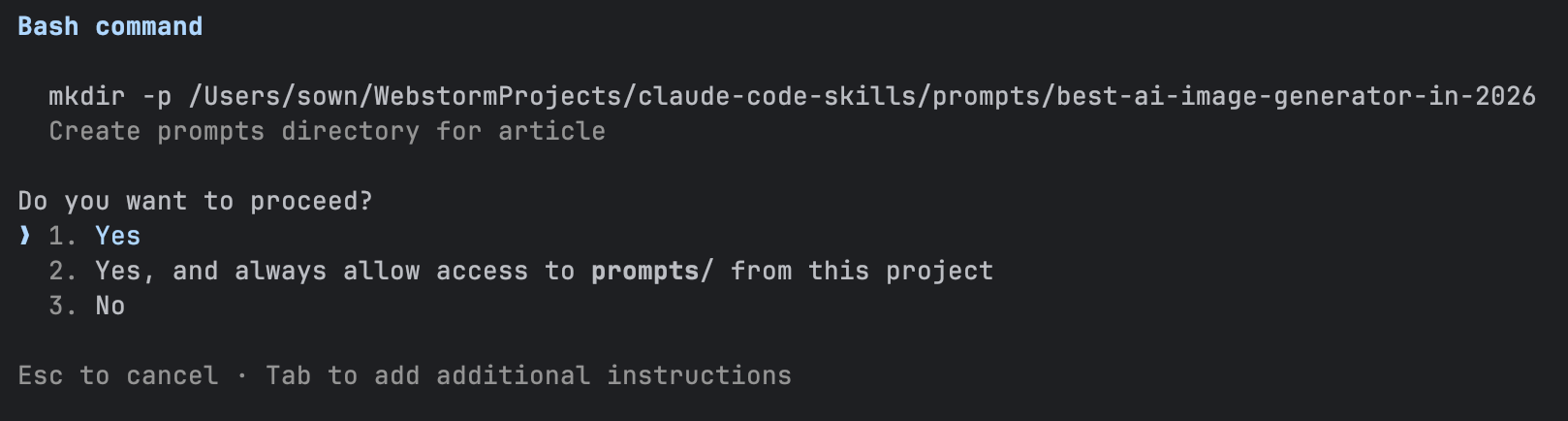
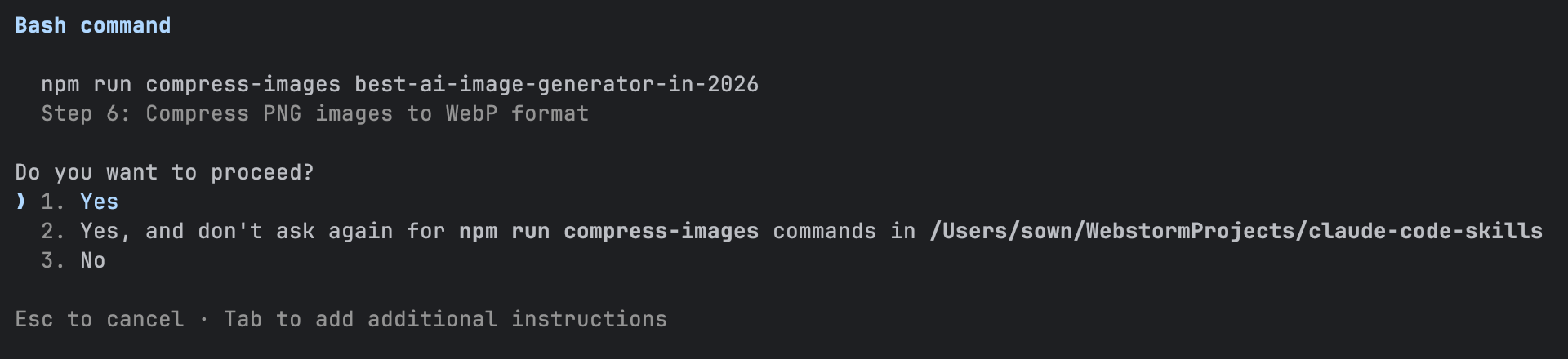
稍等片刻,全部流程执行完成,本次耗时约 3 分 18 秒:
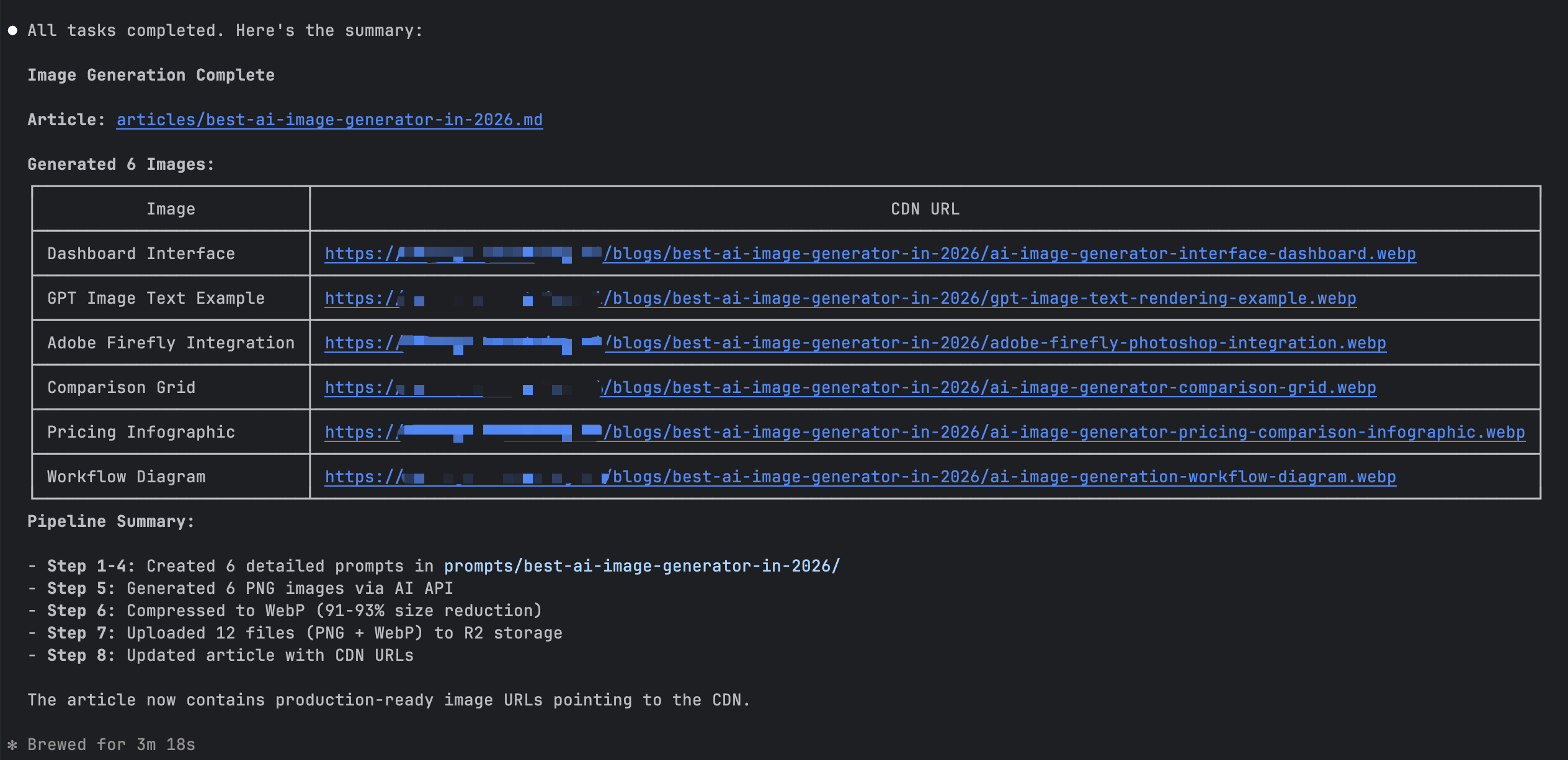
最终生成的完整文章,我已经发布在这里:
2.3 与 MCP 集成的进一步扩展
在现有方案的基础上,还可以进一步接入 MCP,将生成好的文章内容直接写入数据库,实现从「生成 → 入库 → 发布」的一体化流程。
不过这种基于 MCP 的深度集成会涉及到更多后端与数据层的细节,篇幅较长,本篇就不展开实现细节了。后续在专门介绍 MCP 的文章中,我会结合实际案例做更完整的演示和说明。
总结
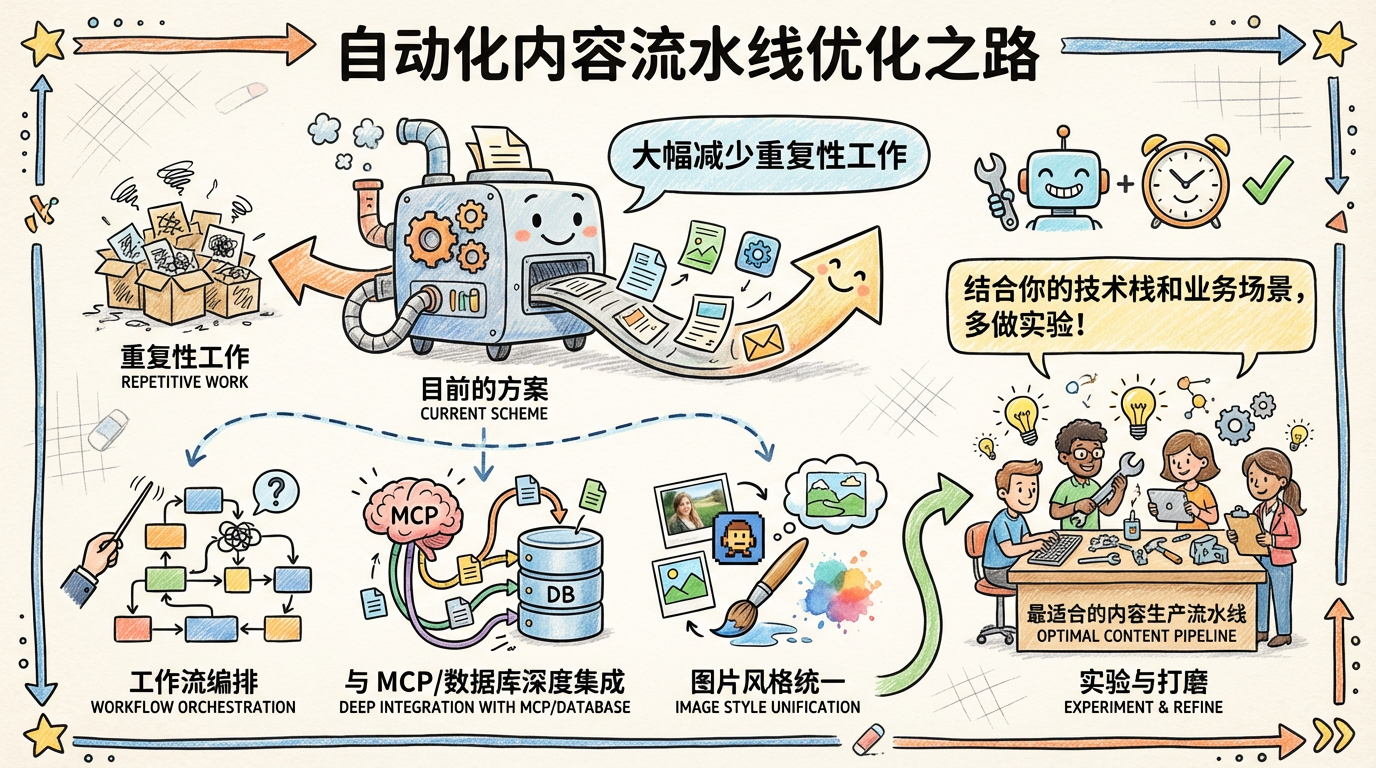
本篇文章演示了如何利用 Claude Code 的 Skill 能力,一次性完成「文章生成 + 自动配图」的整套流程:从结构化写作、SEO 友好排版,到批量生成图片、上传存储并替换占位链接,同时也展示了 Skill 调用本地脚本、编排复杂任务的能力。
目前的方案已经可以大幅减少重复性工作,但在工作流编排、与 MCP/数据库的深度集成、图片风格统一等方面依然有不少优化和扩展空间。推荐你在此基础上结合自己的技术栈和业务场景,多做一些实验,打磨出最适合自己团队的内容生产流水线。
本作品采用《CC 协议》,转载必须注明作者和本文链接



 关于 LearnKu



 粤公网安备 44030502004330号